If you solve a lot of puzzles, you already know the rhythm: look, find the move, play it, reach for the mouse, click Next puzzle, reach back. That reach is small. Repeated forty times in a sitting, it is the slowest part of the whole session.
So chessrank now has a proper keyboard layer, and, more importantly, a way to find out what it is. Press ? on any board screen and this appears:
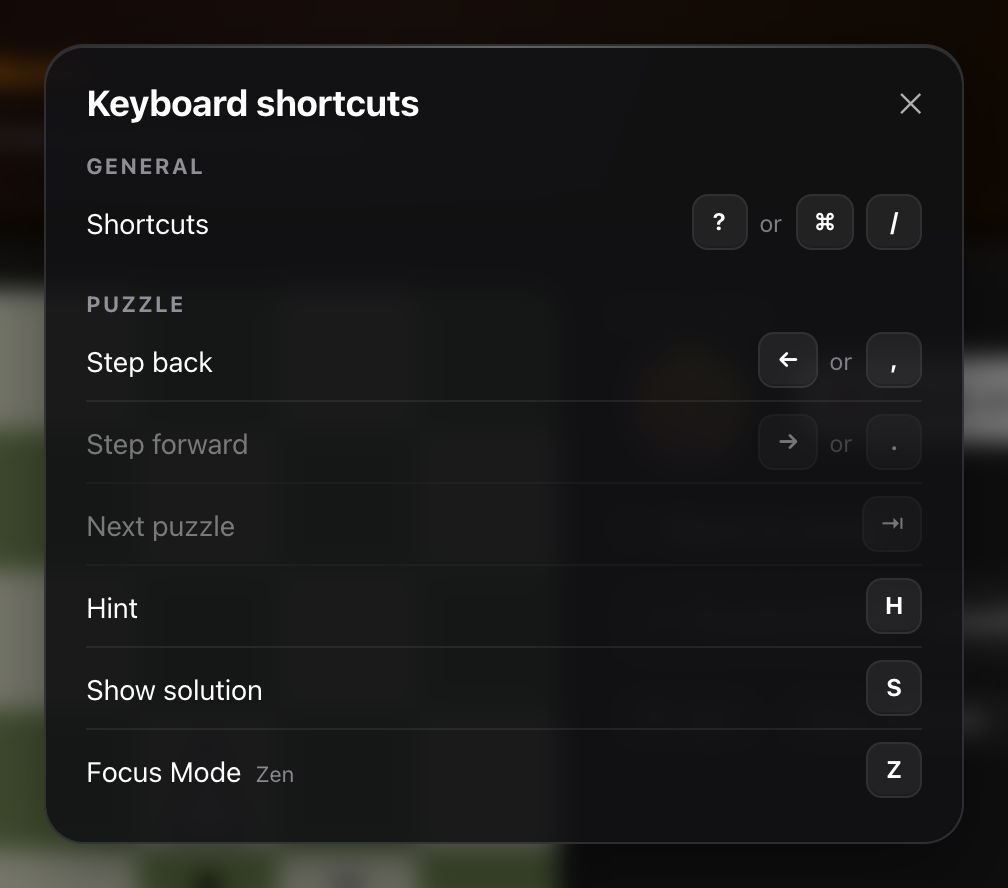
It is contextual. It does not list every key in the app; it lists the keys that are live on the screen you are looking at, right now, with the ones that are currently unavailable dimmed rather than hidden. On a puzzle you get the puzzle keys. In a game against a bot you get the game keys.
On Windows and Linux too
The screenshots in this article were taken on a Mac, so they show the Mac glyphs: ⌘ ⇥ ⏎ ⎋. The legend detects the machine it is running on. Open it on Windows or Linux and those same rows read Ctrl Tab Enter Esc instead, with words in place of the symbols, and the rows are laid out to absorb the extra width.
That is the only difference. Every shortcut in this feature except one is a single bare letter or an arrow key, and those are identical on all three systems. There is exactly one combination in the whole thing, and it is ⌘⏎/CtrlEnter.
Why the shortcuts are bare letters
The first draft of this feature had ⌘W/CtrlW for “White to move”, ⌘H/CtrlH for Hint and ⌘? for the legend itself. All three are impossible in a web browser, and it is worth saying why, because it is not obvious:
- ⌘W/CtrlW closes the tab on every operating system. The browser takes it before the page ever sees the keypress. Nothing a website does can stop that.
- ⌘H is macOS's “Hide application”, an entry in the browser's own menu bar, which always wins. On Windows and Linux the same combination is not free either: CtrlH opens History.
- ⌘? is the macOS Help menu. The desktop apps that use it for a shortcut sheet own their menu bar; a website does not. (Windows has no equivalent, which is why the legend key here is the plain ? everywhere.)
⌘R/CtrlR (reload) and ⌘F/CtrlF (find in page) are technically stealable in some browsers, and we rejected them anyway. Half-stealing find-in-page is annoying; half-stealing reload while someone is mid-analysis is worse than annoying.
That leaves one clean rule, and it is the one lichess follows too: ⌘ and Ctrl belong to the browser. Bare letters belong to the page. Every shortcut below is a single key you press on its own. Your browser's shortcuts all still work exactly as they did, whichever system you are on.
Puzzles
On Puzzles, Custom, Repeat and the Crazy Puzzle post-run review:
→ does double duty on purpose. While there are still moves to step through it steps; once you have run out, the same key picks up the next puzzle. So it never takes anything away. It only becomes “next” at the point where stepping is finished anyway. The legend is careful about this: it moves the → chip onto whichever row it is really serving at that moment, so it never sits under a label describing the job it is not currently doing.
Focus Mode is Z rather than F, because F is Flip in every chess interface ever built and we were not about to break that. Z is for Zen, the distraction-free mode, board and nothing else. The legend prints that mnemonic next to the row, because a letter you cannot derive is a letter you will not remember.
S shows the solution immediately, with no confirmation. That is deliberate, and it is the opposite of what R does further down: revealing costs you one puzzle out of many and gets pressed often, so a dialog in front of it would be the nuisance rather than the safeguard.
Blunder puzzles
The puzzles built out of your own mistakes (in Game Analysis and on the Blunder Puzzles screen) are the one place where the buttons themselves change halfway through. While you are solving:
Answer it (solve it, or press S) and Hint, Show solution and Skip come off the screen; ‹ Prev and Next puzzle › take their place. The keys move with them:
That swap is the whole point. A legend still offering you Skip next to a Skip button that is no longer there is worse than no legend, so each key follows its own button on and off the screen, and if the deck has only one puzzle, there is no Prev button and therefore no P row.
→ keeps the double duty it has in the Puzzles section: while there is a position further on it steps to it, and once there is not (the › button beside it goes dashed), it picks up the next puzzle instead. P for Prev rather than ←, because ← walks the position here and both are live at once: looking back at where the blunder came from is exactly what you do once you have seen the answer.
Board analysis
The analysis board is where a keyboard pays off most, because setting up a position is fiddly work with a mouse:
⌘⏎/CtrlEnter is the one modifier combination in the entire feature. → does the same thing, and the pair reads as one idea: ← takes the last move off the board, → puts the engine's move on it. On a board with no game to step through, that is what stepping forward means.
R and K both wipe the board and neither asks you first. That is deliberate: both push the old position onto the undo stack, so ← puts it straight back. A confirmation dialog in front of an action you can undo with one keystroke is friction for nothing.
Playing a bot
In Play vs Bots, and the same three in Opponent Prep, where the game is a practice one and R is Restart instead of Resign:
R does not resign your game
Here is the part we thought about hardest. Resigning is irreversible, and a letter key is exactly the sort of thing that gets pressed by a hand that thought it was somewhere else. So R does not resign. It asks:
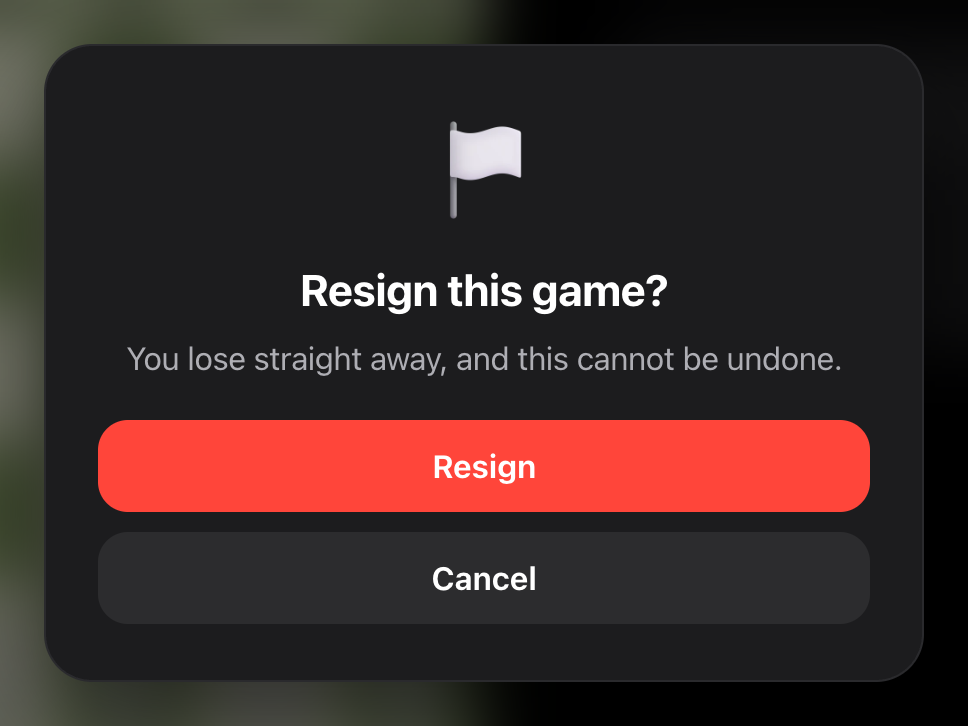
Esc or Cancel backs out; the button confirms. The same card guards Restart in Opponent Prep, which throws away a practice game. Every other shortcut in the app is either reversible or costs you nothing, so these two are the only ones that ask.
Game review
The move-by-move review and the self-review have used ← and → for a long time. They now go through the same system as everything else, which quietly fixed three things: the arrows no longer fire while you are typing in a text field, they no longer fire underneath an open dialog, and they no longer scroll the page sideways at the same time as changing the move.
How you find out any of this exists
A shortcut nobody knows about is not a feature. So each board screen carries a small, quiet chip near its controls:

Click it, or press the key it shows, and you get the legend for that screen. It stays muted and out of the way. It is a signpost, not a button you are meant to use.
On phones and tablets you will see none of this: no chip, no legend, nothing. A touch screen has no keyboard shortcuts, and a hint about keys you cannot press is just clutter on the screen where space is tightest.
The short version
Press ?. That is the only one worth memorising. The rest are on screen the moment you do.